
Painting with Photoshop

Lessons
About This Lesson Series...
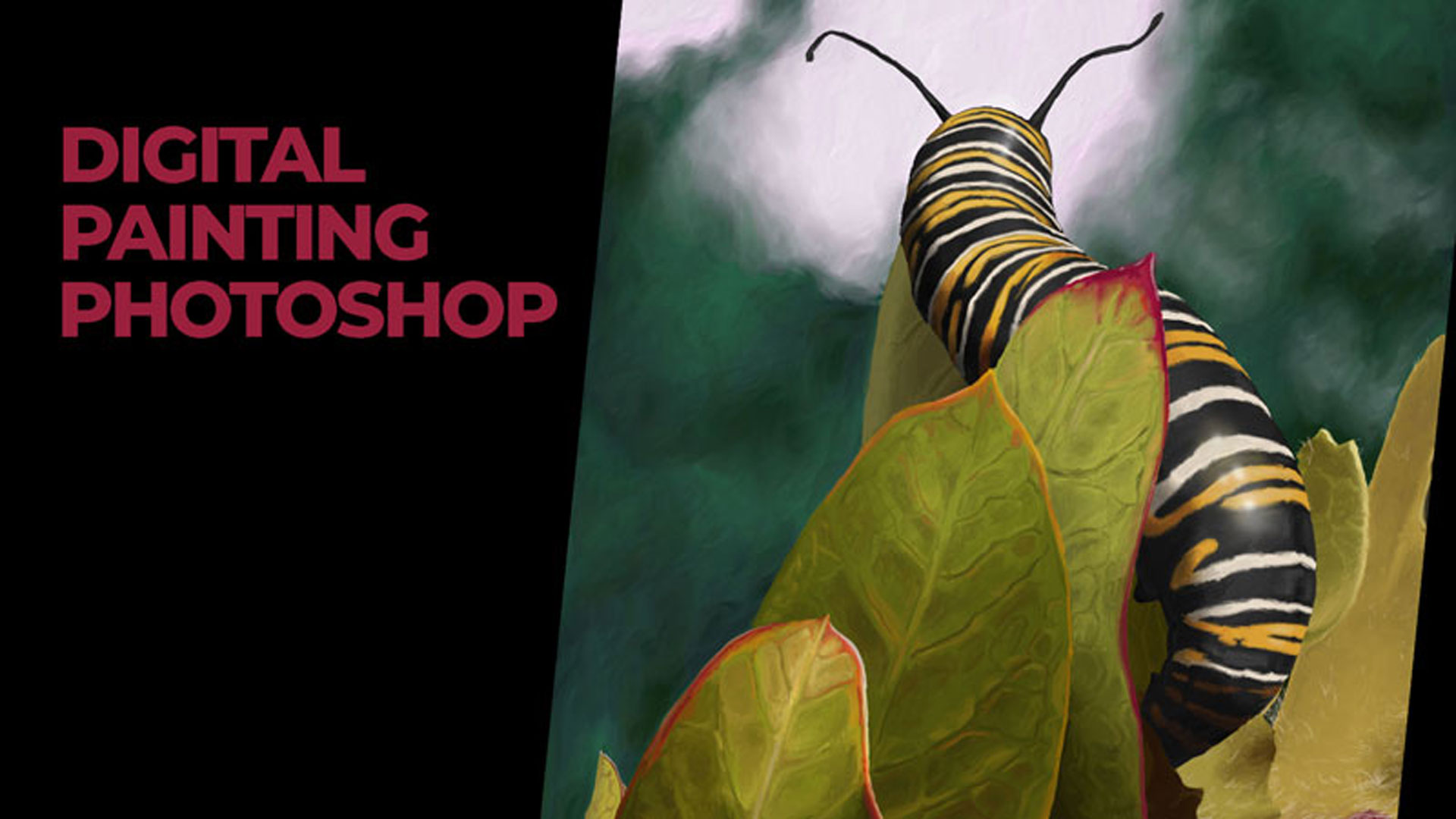
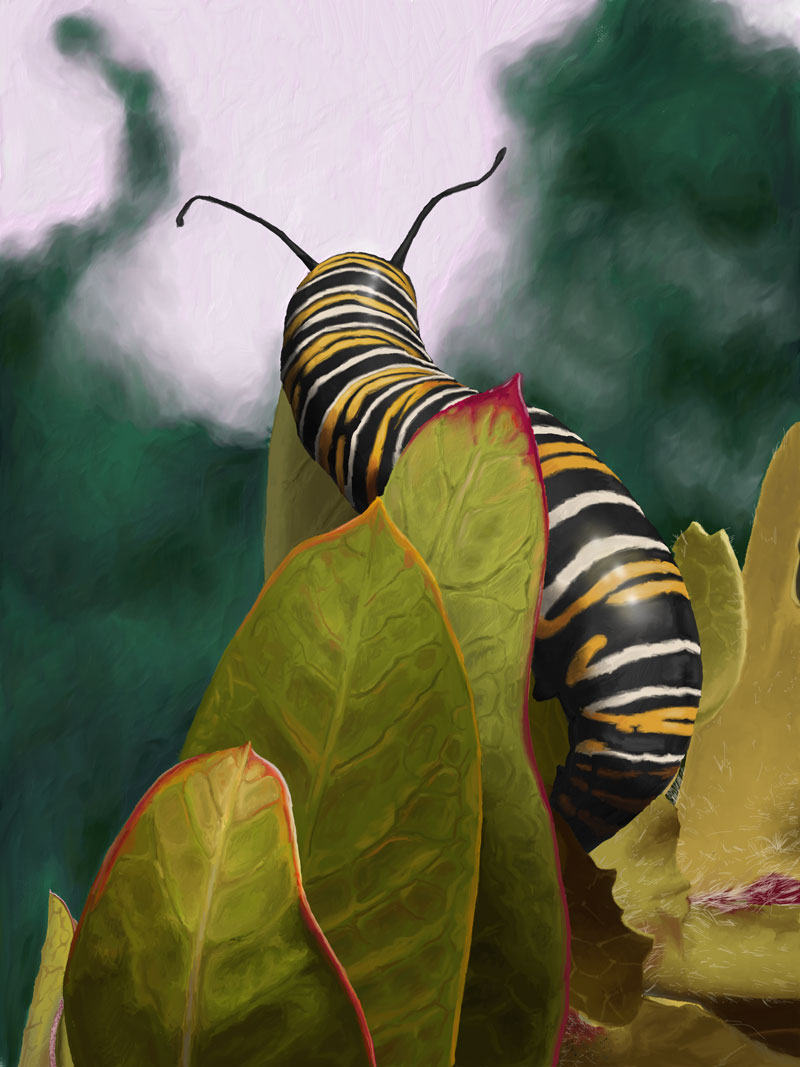
The Painting with Photoshop lesson series is a detailed and practical exploration of digital painting using Adobe Photoshop, designed to help artists transition from traditional media into confident digital creation. Across six lessons and over six hours of instruction, you’ll learn how to use Photoshop’s painting tools and workflow to build a finished digital image of a caterpillar that resembles a traditional painting. This series breaks down the digital painting process into clear steps that focus on tool mastery, color, detail, and polish.
Lesson 1: Getting Started and Document Setup
The series begins with a comprehensive introduction to the basics of Photoshop painting. You’ll learn how to set up a document with appropriate resolution and canvas dimensions, how to select and customize brushes, and how to organize your workspace for painting. Early instruction also includes tips on creating a solid foundation for your digital artwork so that the later stages of painting proceed smoothly.
Lesson 2: Beginning the Painting—Foreground Focus
Once the workspace is ready, lesson two focuses on painting the foreground elements, beginning with one of the leaves near the caterpillar. This early color work explores how to mix, apply, and blend digital paint to establish form and value. By concentrating on one area, students learn how to develop believable surfaces and subtle transitions using layered brush strokes.
Lesson 3: Refining Foreground Details
In lesson three, attention continues on the leaves and foreground elements to further refine detail and strengthen relationships between shapes, colors, and values. This lesson emphasizes how repetition and controlled layering build richness and depth in digital painting, showing students how to balance color intensity and contrast to enhance realism.
Lesson 4: Expanding to Additional Tools
Lesson four introduces the use of the Adobe Fresco app in tandem with Photoshop, demonstrating how additional digital tools can support the development of complex elements such as additional leaves or background forms. This segment helps students understand the flexibility of digital media and how multiple applications can be integrated to enhance workflow and creative possibilities.
Lesson 5: Adding Detail to the Caterpillar
With the environment shaping up, lesson five focuses specifically on the caterpillar, adding distinctive stripes and refining its form. Students learn how to render patterned surfaces, adjust color harmony, and maintain consistent light direction. This detailed work builds confidence in handling intricate elements within a larger composition.
Lesson 6: Finalizing Highlights and Polish
In the final lesson, students complete the caterpillar painting by adding highlights and final touches to the body and surrounding elements. This stage teaches how to enhance brightness, refine subtle shifts in color and value, and give the entire piece a polished look. The instructor also discusses final evaluation, helping you assess your painting holistically.
A Complete Digital Painting Workflow
By the end of the Painting with Photoshop series, you will have completed a fully realized digital painting of a caterpillar and gained a solid foundation in Photoshop painting techniques. This series equips you with the skills needed to approach digital painting projects with confidence, from initial setup and brush control to detailed rendering and finishing touches.
Resources for this Lesson...
Distributing any content downloaded from this site is strictly prohibited and against the terms and conditions of use.
References
Here's what you'll need...
- Adobe Photoshop
- OR Adobe Fresco (App)
(Disclosure: Links to art materials are affiliate links which means we make a small commission if you purchase at no additional cost to you.)

Expert teacher and visual artist. Ashley is encouraging and makes creating art easy to understand.
would procreate work for this?
Hi Shawna,
Yes, absolutely!
Thanks for the great info. I have a Microsoft Surface w/ Windows 10 and I was able to install the Adobe Fresco app for free. (It did freeze overnight and I terminated the app and was able to start it fresh again this morning – minor price to pay for a powerful free version). I’m excited. This will be my first digital piece. You’ve chosen a great image for someone just getting started.
I would appreciate more lessons on using Photoshop and Fresco to make digital art. (And yes, the Photoshop + Lightroom subscription for $10 is a fantastic deal!)
Ashley, if you lock the transparency of the caterpillar layer and clip the stripes layer to it you won’t have to worry about painting the stripes outside of the caterpillar. It’s hard to explain but I can go into more detail if you want. Loving this tutorial.
I just noticed you have different layers for the cat so you would have to do it for each of those layers. There’s probably an easier way also. BTW will the PSD file be available for download? it would make a very good visual training tool. Just a thought.
Btw you don’t have to lock the transperency on the bottom layer as long as you clip the cayers. i’m trying to shake off the PS cobwebs.
Thanks a lot for this lesson. Have been wanting to try digital art for a while. A great introduction for me.
Awesome to hear Melanie!
Matt, I just watched this first episode on the digital caterpillar, and it is so new to me. How do you do a stylus on a laptop? I just don’t get it.
Also, I’ve heard you say that although you love ‘Open’ Paints, you avoid them because of the caps being hard to get off. If you put Vaseline around the screw top, they are easy to get off. Love your program and you and Ashley together. Thank You, Marjorie
I have paint.net. It does the same thing as photo shop and it is free
I’m trying to get back to learning Adobe Fresco after being away from it for six months or so. I started this series earlier this year and have just watched all six lessons again. Ashley is so talented and his work is such an inspiration! I was having a terrible time with the mixer brushes until I got to the tip to turn off color. What a difference and much easier to achieve the desired effect! By the way, Fresco has had an update or two since you did this. Mixer brushes now have a “Load” switch in the settings. Turning this switch off prevents the brush from re-loading when you pick it up. Speaking of brushes, I put Kyle’s Oil mixer brush into a Creative Cloud library so that I can use it in Fresco and it works great.
Correction, the switch is called Reload.
I would appreciate more lessons on using Photoshop to make digital art